 AdAce Ads
Step-by-step guide
How to get started with AdAce Ads
Six steps from sign-up to your first decision. Each one shows what to click and what it looks like in the app.
Version: 14 November 2026

Screenshots show the real AdAce Ads app with made-up data: the business “Maple Home Repair”, its campaigns and numbers are an example.
Step 1 of 6
Create your free workspace
1 minute. No card needed.
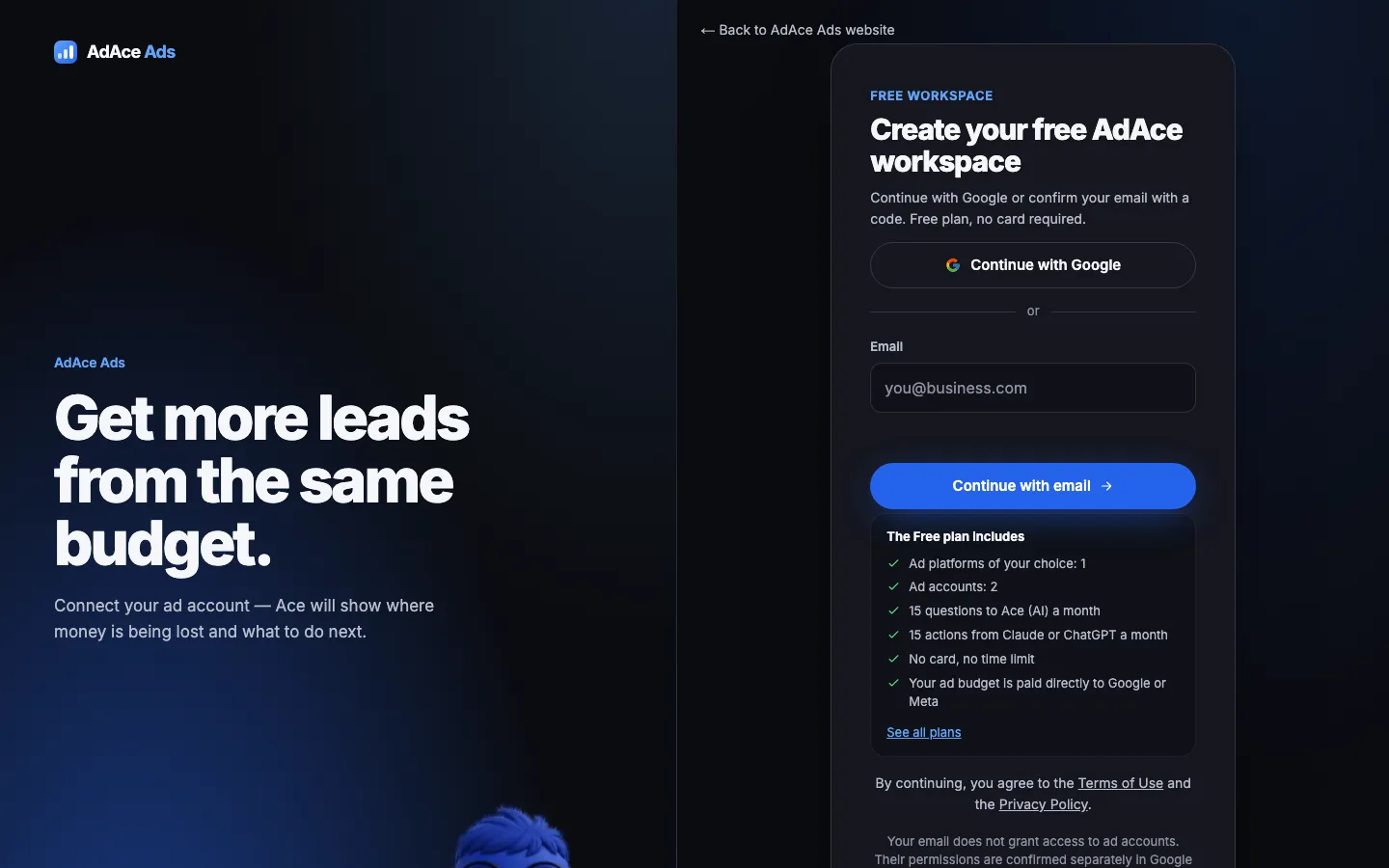
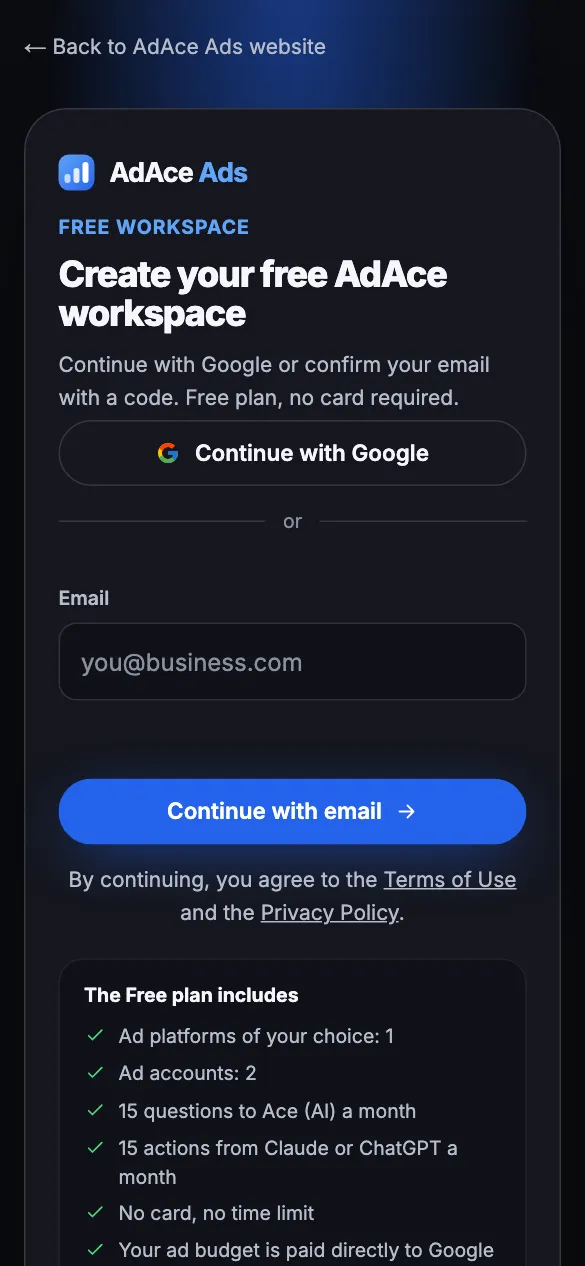
Sign-up screen: Google sign-in or email with a code - On the website, click “Start free”.
- Choose “Continue with Google”, or enter your email and click “Continue with email”.
- Enter the code from the email and click “Sign in with the code” — your workspace opens on Home.
No email? Check your Spam and Promotions folders.
Step 2 of 6
Connect your ad account
2–3 minutes. We never see your Google or Facebook password.
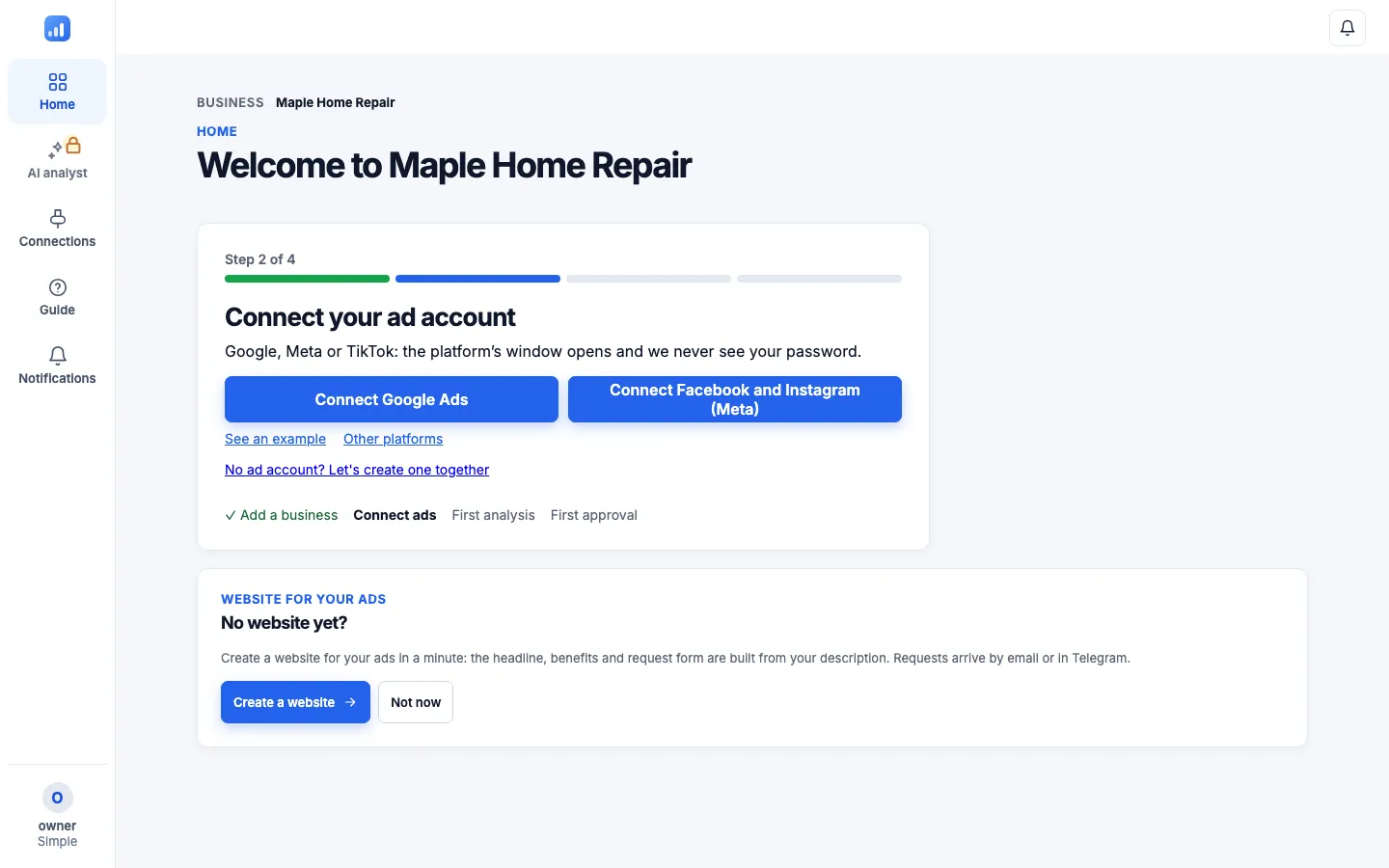
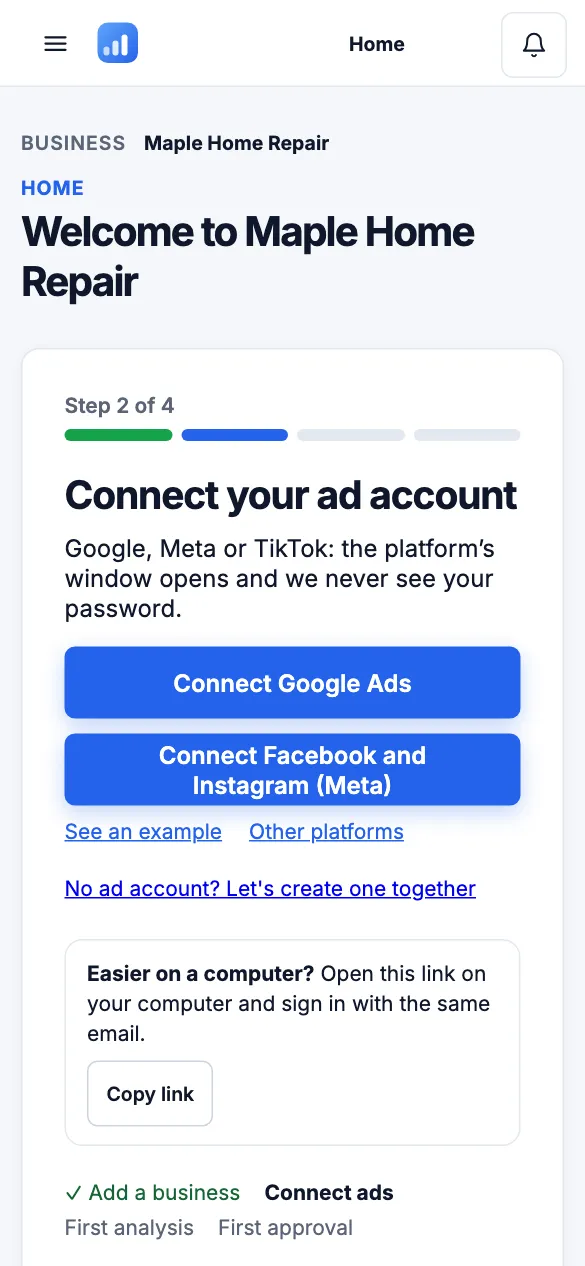
Home in a new workspace: buttons to connect Google Ads and Meta - On Home, click “Connect Google Ads” or “Connect Facebook and Instagram (Meta)”.
- For Google, the “Google Ads advertising” box is all you need. Click “Continue” — the official Google or Facebook window opens.
- Pick your account and allow access. The account appears under “Connections”.
No ad account yet? Click “No ad account? Let's create one together” and we'll show you how. In the Facebook window, choose all current and future Pages and ad accounts.
Step 3 of 6
See your first analysis
Nothing to set up: Ace collects 30 days of data on its own — usually a few minutes.
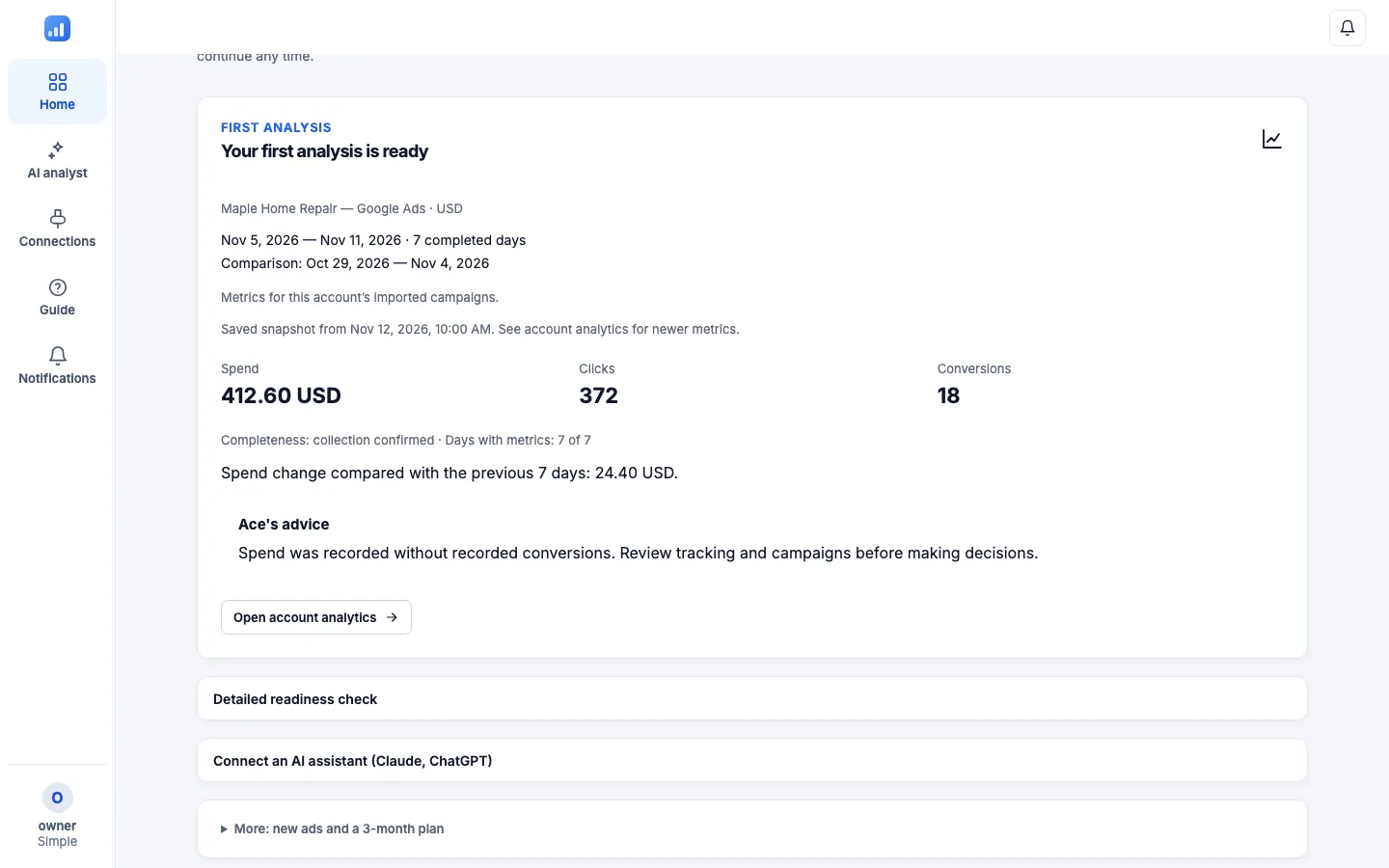
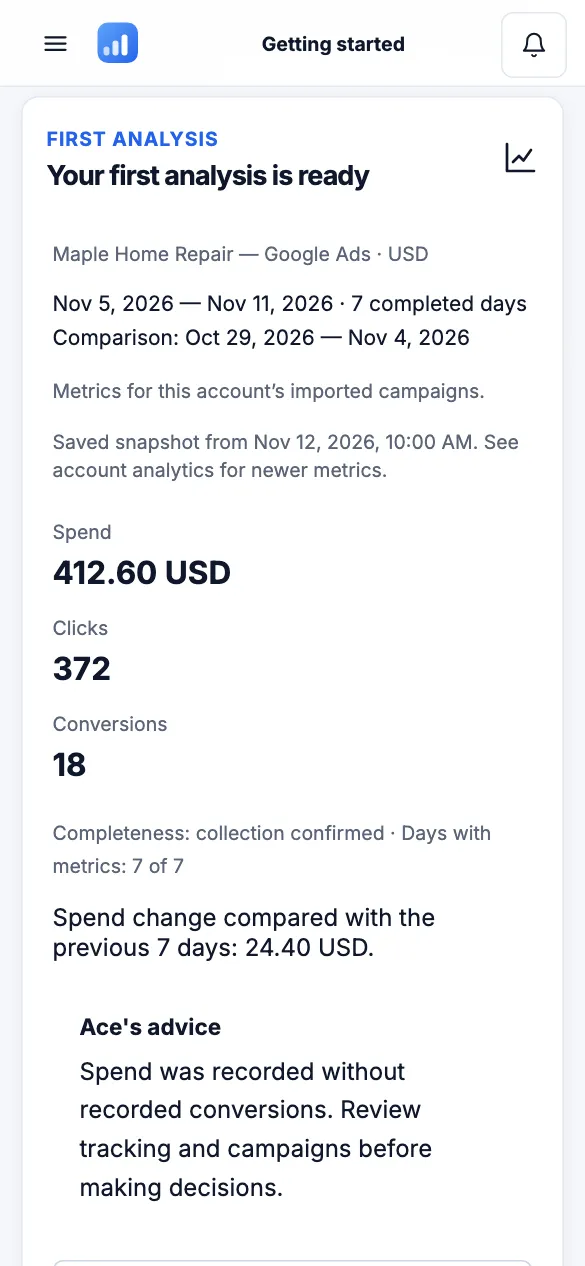
First analysis: spend, clicks, conversions and Ace's advice - On Home, click “Open the first analysis”.
- The “Your first analysis is ready” card shows spend, clicks and conversions for the last 7 completed days, compared with the 7 days before.
- Below it is “Ace's advice” — for example, that money went to campaigns without conversions and what to check.
Today's numbers are not included: the service only counts completed days.
Step 4 of 6
Ask Ace
In your own words. Ace answers with numbers from your account.
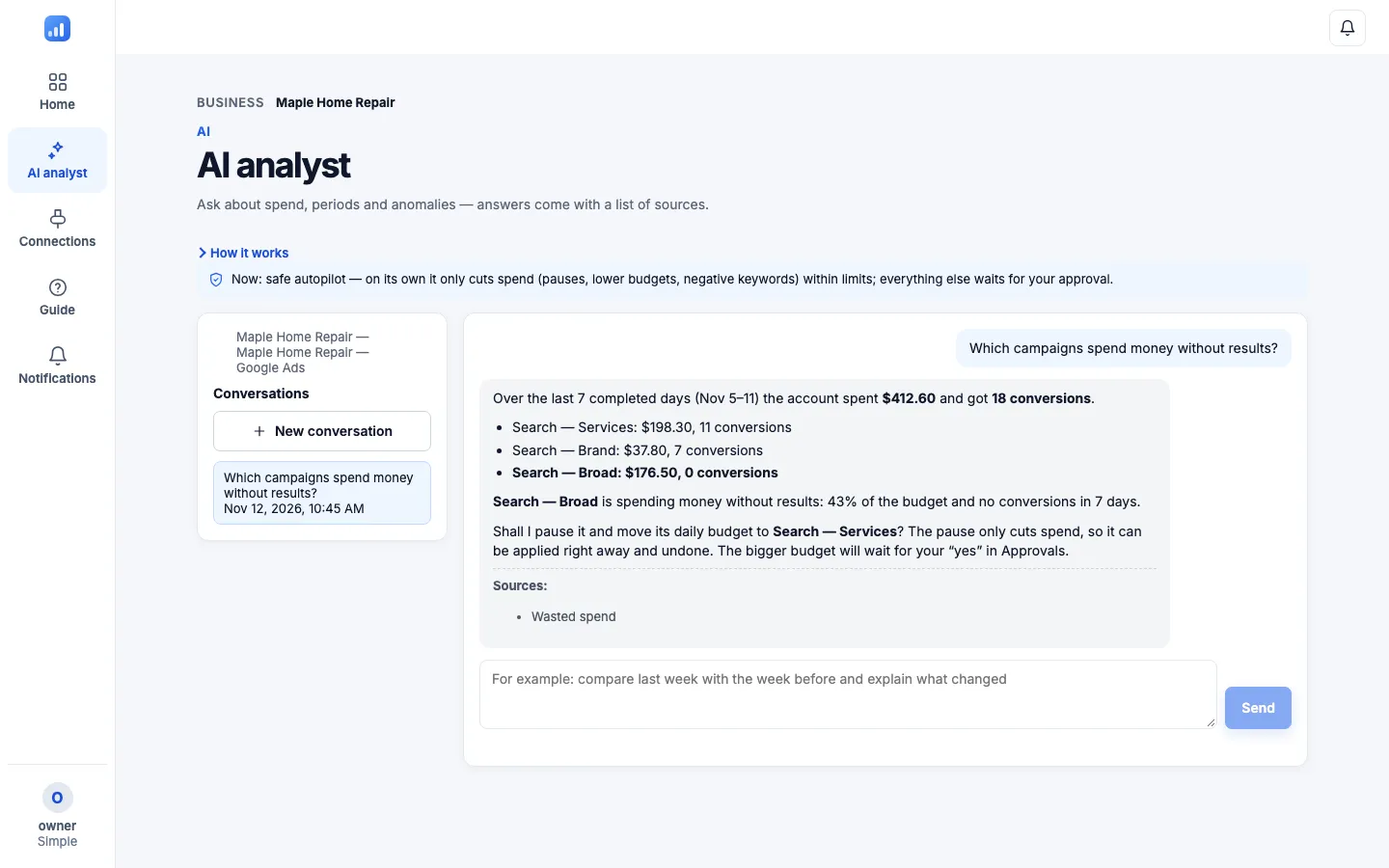
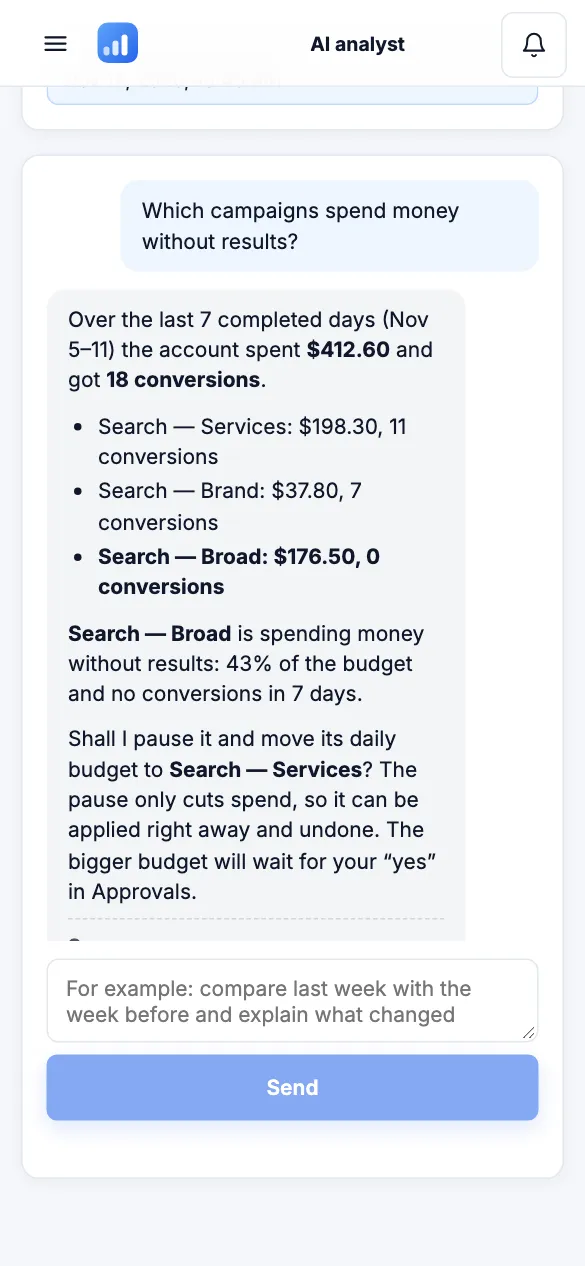
Ace's answer: a campaign spending without results and a suggestion - Open “AI analyst”.
- Pick the ready-made question “Which campaigns spend money without results?” or type your own and click “Send”.
- Ace shows which campaigns spend without results and suggests what to change.
Every change Ace suggests is a proposal: what the service does on its own and what waits for your “yes” is in step 6.
Step 5 of 6
Build a site on AdAce Pages
No page for your ads? A page with a lead form in 4 steps.
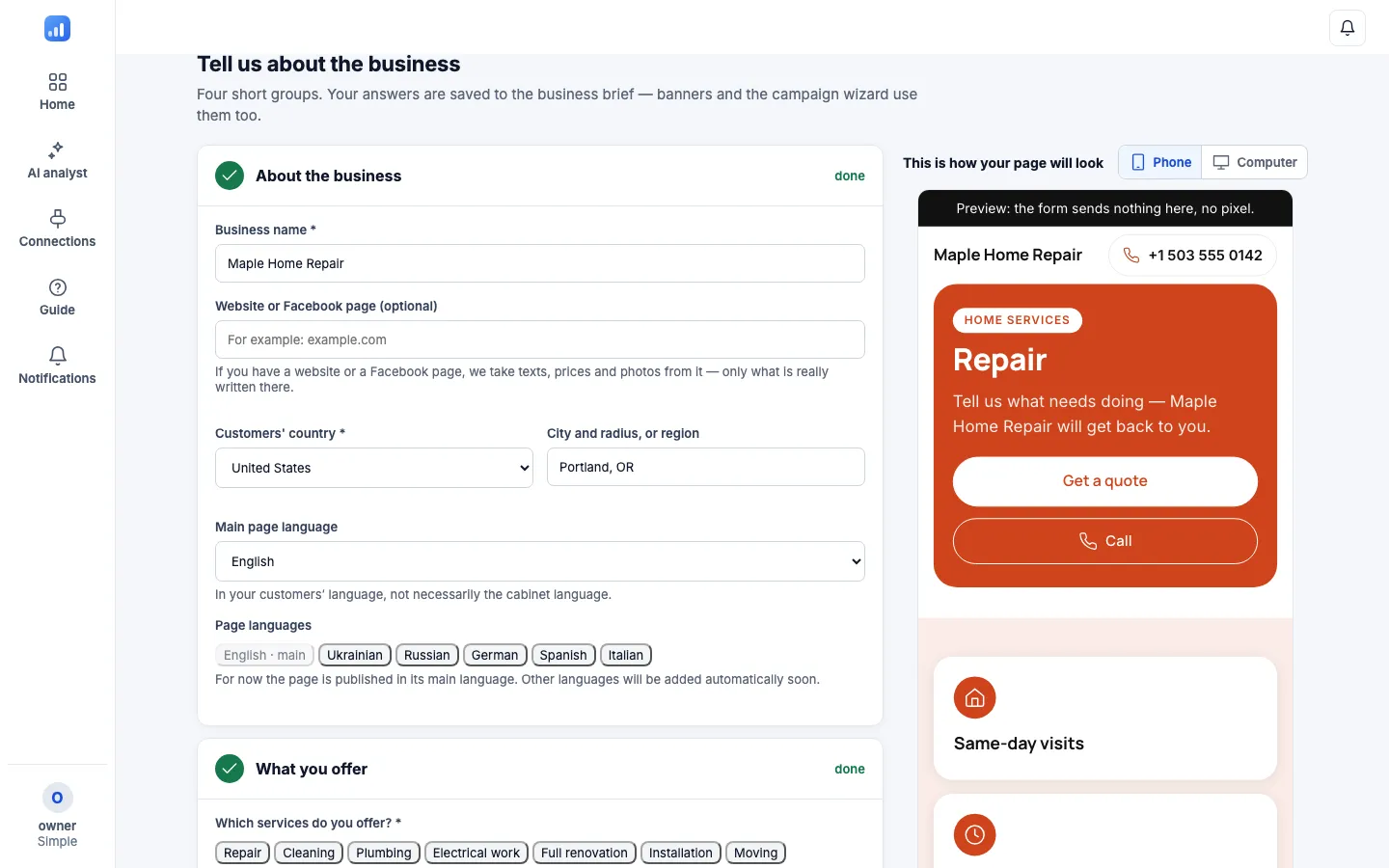
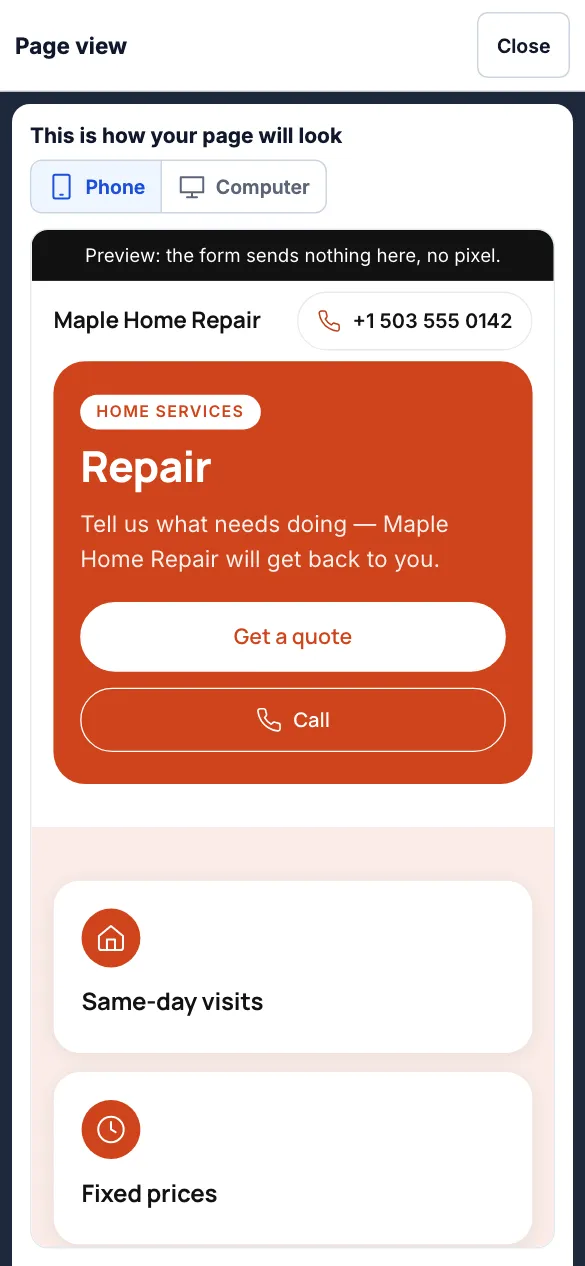
Page draft in preview: headline, quote and call buttons - Open “Website for your ads” in the profile menu.
- Go through “Business type”, “Design”, “Data” and “Review & publish”. The “Preview” button shows the page the way a customer will see it.
- Click “Create a draft and review”.
Publishing needs the Pro or Max plan. On Free and Plus you can keep up to 2 drafts to preview.
Step 6 of 6
Pauses and approving changes
You have the final say.
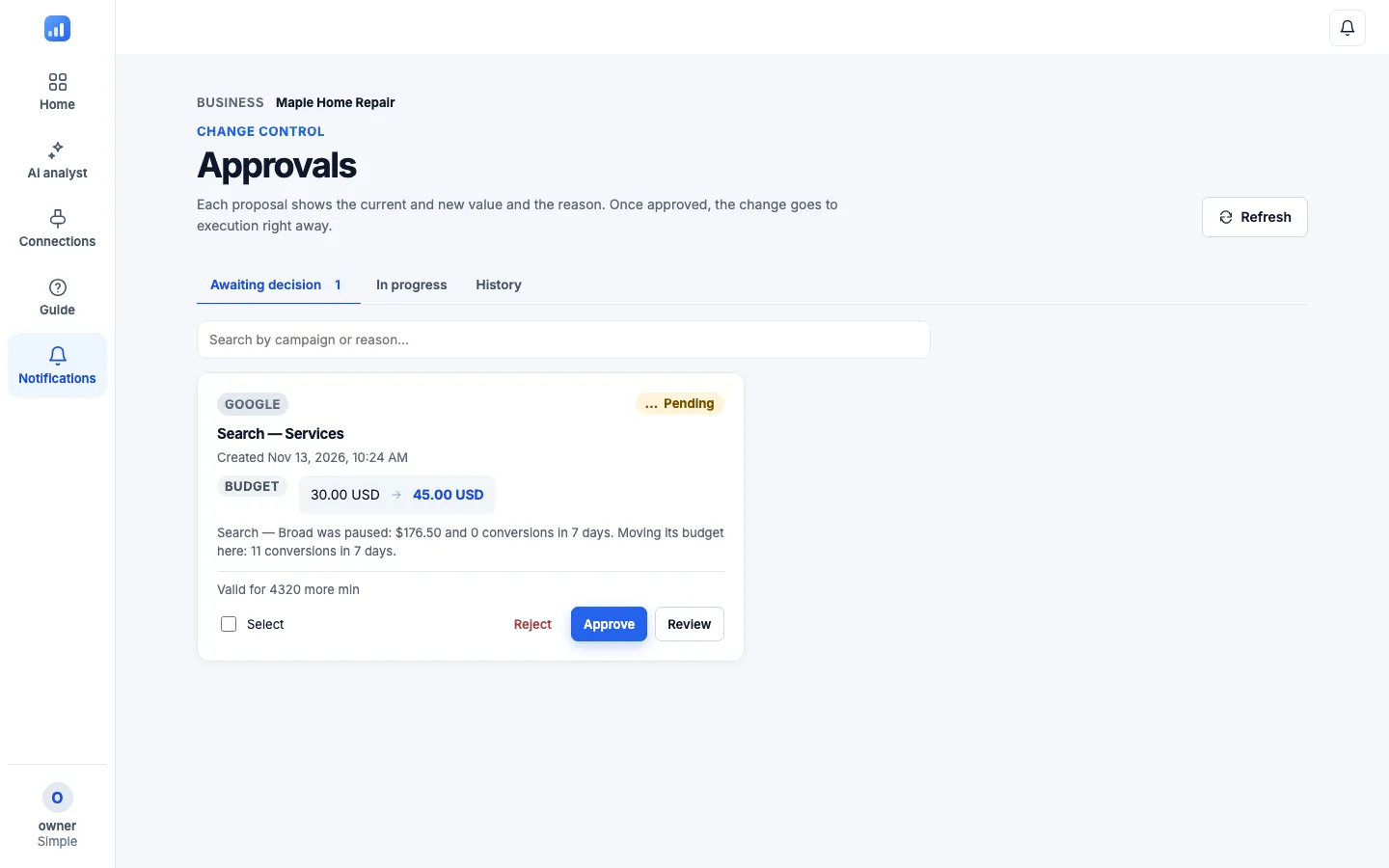
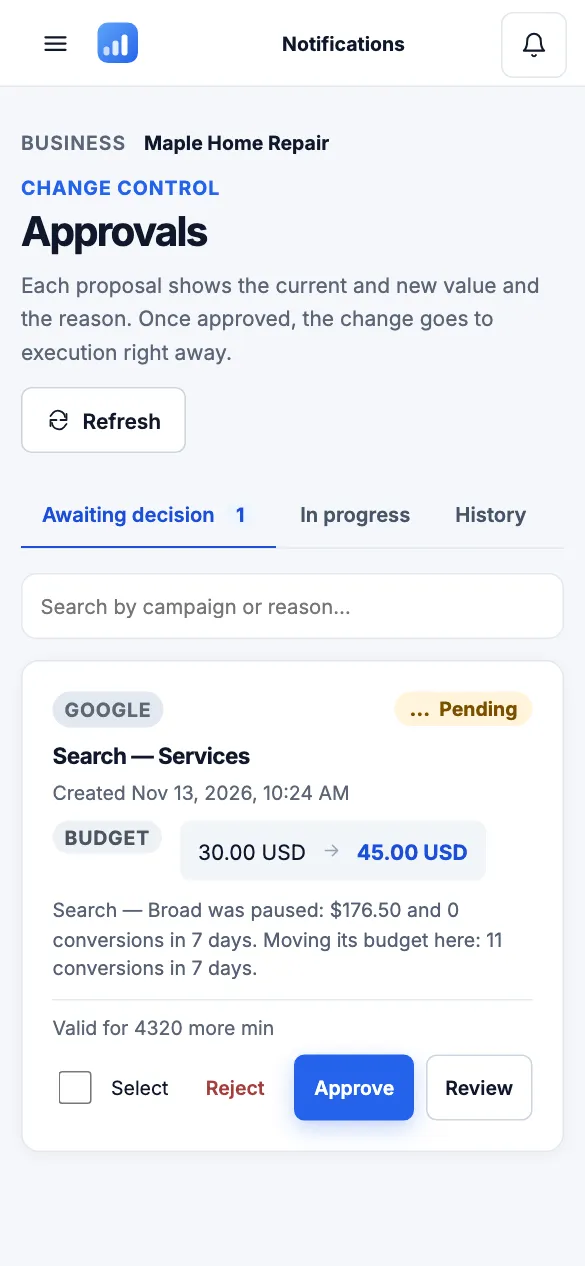
Approvals: a bigger budget for the campaign that brings leads waits for your “yes” The rule for every change:
Once you allow changes in your ad account, the service can cut spend on its own — pauses, lower budgets, negative keywords — within your limits. By default, everything else waits for your yes, and most changes can be undone.
- Once you allow changes in an ad account, the service can pause a campaign that brings no results on its own (within your limits) — that only cuts spend, and the owner or an admin can undo it.
- By default, everything else waits in “Approvals” (in the simple menu it is “Notifications”): you see what it was, what it will be and why.
- Click “Approve” or “Reject” — to reject, write a short reason.
Ready to start?
A free workspace in a minute. No card needed.
Working in Claude or ChatGPT? You can connect AdAce Ads there too — see the “Guide” section in the app.
Questions? Write to us in “Support” (profile menu) or by email: info@adace.website